
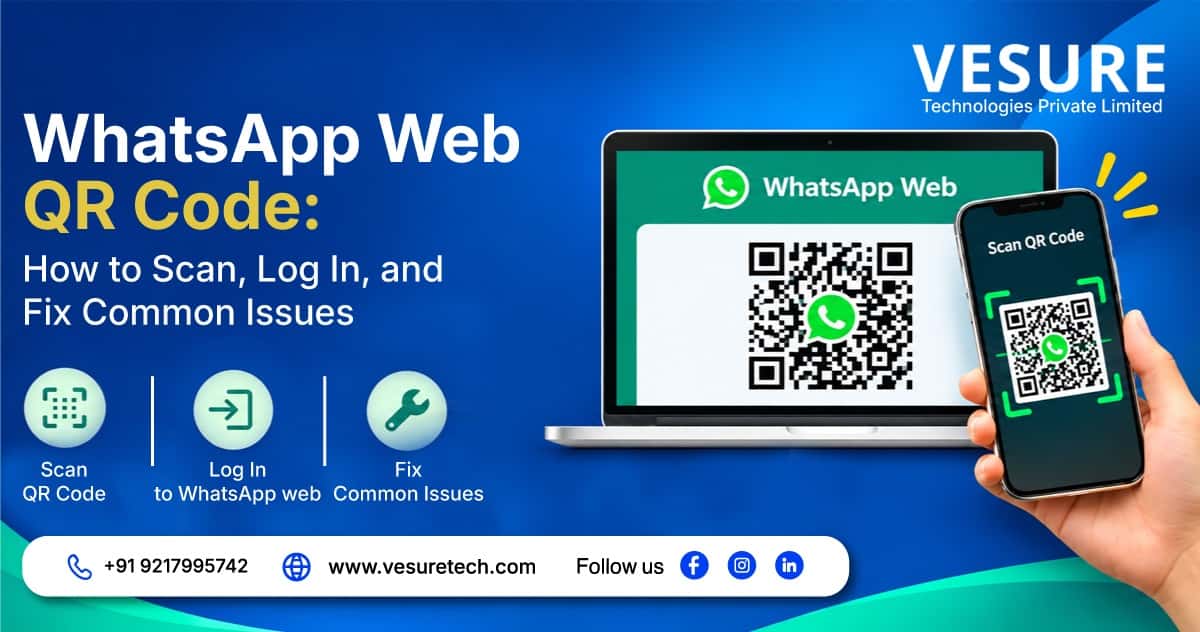
To log in with the WhatsApp Web QR code, open web.whatsapp.com on your computer. Then, on your phone, go to Linked Devices, tap Link a Device, and scan the code on your screen. No password needed. Your chats load on the desktop within seconds. This guide shows the exact steps for Android and iPhone, how to fix a QR code that won't load or scan, how many devices you can link, and when a growing business team needs more than WhatsApp Web.
Quick answer: log in in 4 steps
- Open web.whatsapp.com on your computer to show the QR code.
- On your phone, open WhatsApp. Android: three dots, then Linked devices. iPhone: Settings, then Linked devices.
- Tap Link a device and confirm on your phone if asked.
- Scan the QR code with WhatsApp's built-in scanner. Your chats appear on the computer.
What Is the WhatsApp Web QR Code and How Does It Work?
The WhatsApp Web QR code is a pairing code that connects your WhatsApp account to a computer. Your account lives on your phone, so WhatsApp needs proof that you approve a new screen, such as a browser or desktop app. Scanning the code is that proof.
Your phone must be online for the first link. After that, the session keeps working even if the phone is offline. But the phone must connect at least once every 14 days, or WhatsApp logs linked devices out.
Messages stay end-to-end encrypted on every linked device.
Why use WhatsApp Web with a QR code?
For work, a computer is simply faster. You get these benefits:
- Faster typing with a full keyboard and a bigger screen.
- Easy file sharing. Drag and drop photos, PDFs, and documents from your computer.
- Better multitasking. Reply to customers while you work in email, a CRM, or a spreadsheet.
- No extra password. One scan links your account, and your chats sync to the computer.
How to Scan the WhatsApp Web QR Code (Step-by-Step)
Update WhatsApp first and check that both devices have internet. They do not need to share a network. Keep your phone in hand, because the code refreshes after a short time.
Android: WhatsApp Web login with QR code
- On your computer, open web.whatsapp.com
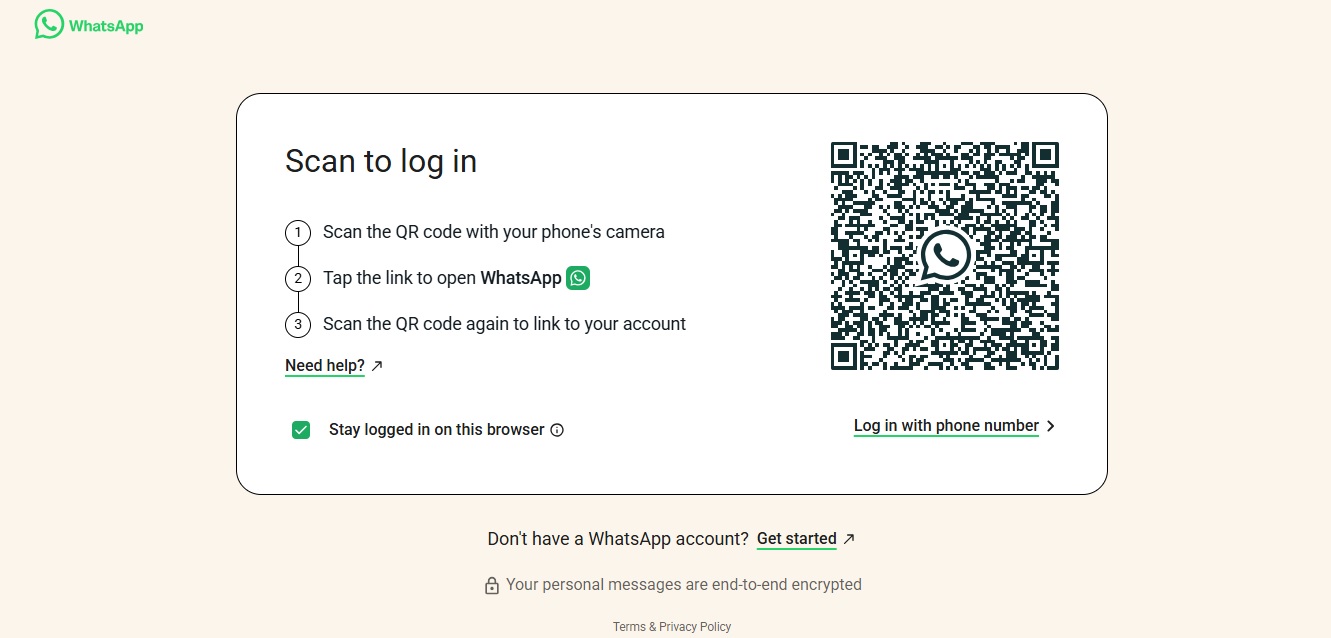
- On your phone, open WhatsApp or WhatsApp Business.
- Tap the three dots at the top right, then Linked devices.
- Tap Link a device. Confirm with your fingerprint, PIN, or pattern if asked.
- Point the camera at the QR code and hold steady.
iPhone: WhatsApp Web login with QR code
- On your computer, open web.whatsapp.com.
- On your iPhone, open WhatsApp and tap Settings at the bottom right.
- Tap Linked devices, then Link a device.
- Confirm with Face ID, Touch ID, or your passcode if asked.
- Scan the QR code on your computer screen.
Desktop browser or desktop app
Both use the same WhatsApp login QR code.
- Browser: Open web.whatsapp.com in Chrome, Edge, Firefox, or Safari. You stay signed in until you log out or clear browser data.
- Desktop app: Download WhatsApp from the Microsoft Store (Windows) or Mac App Store, open it, and scan the code it shows.
No camera? Link with your phone number
WhatsApp Web and WhatsApp for Windows let you skip the QR code.
- On the login screen, click Link with phone number and enter your number with country code.
- Note the 8-character code on screen.
- On your phone, go to Linked devices, tap Link a device, then Link with phone number instead, and enter the code.
How to log out of WhatsApp Web
Log out when you finish on a shared or public computer. You have two options:
- From the computer: In WhatsApp Web, click the three-dot menu (in the desktop app, click the menu icon) and choose Log out.
- From your phone: Open Linked devices, tap the device you want to remove, and tap Log out. Use this if you left a session open on another computer.
Closing the browser tab alone does not end the session.
How to Use WhatsApp Link Device QR Code for Multiple Devices
The same WhatsApp link device QR code process adds more screens to one account. Your main phone holds the account, and every other device connects to it as a "companion". Know these limits:
- One primary phone. A linked device cannot become the primary.
- Up to four linked devices. Each browser, desktop app, tablet, or extra phone counts as one. If WhatsApp refuses a new link, log out a device you no longer use.
- The 14-day rule. Open WhatsApp on the primary phone at least every 14 days.
- Fewer features on linked phones. Some, such as live location, may not work.
To link a second phone (Android example), tap the three dots on the screen that asks for your number, choose Link a device, then scan its QR code from your main phone.
WhatsApp Web QR Code Not Working? Common Issues and Fixes
Most problems come from the camera, the network, or the browser.
1. QR code not loading
- Cause: A browser extension, blocked cookies, a VPN or proxy, or an office network that blocks WhatsApp Web.
- Fix: Reload the page, turn off ad blockers and VPN, try incognito or another browser. On office Wi-Fi, try your phone's hotspot.
2. QR code not scanning
- Cause: A dirty lens, low brightness, glare, a tiny code, or scanning with the phone's camera app instead of WhatsApp.
- Fix: Scan from Linked devices, then Link a device. Raise brightness, wipe the screen and lens, and move the mouse pointer off the code.
3. QR code keeps refreshing
- Cause: The code expires if not scanned quickly, and a weak connection makes it reload.
- Fix: Open the phone scanner first, then show the code. If it expires, click reload and scan right away.
4. "Phone not connected" or logged-out errors
- Cause: The primary phone went unused for over 14 days, the device was logged out, or you hit the four-device limit.
- Fix: Open WhatsApp on your phone, check Linked devices, remove old sessions, and link again.
5. Browser and cache problems
- Cause: An outdated browser or corrupted cache.
- Fix: Update the browser, clear cache and cookies for web.whatsapp.com, and restart. This logs you out, so scan a fresh code.
6. Slow internet
- Cause: Weak Wi-Fi or mobile data on either device.
- Fix: Switch to a stronger network or hotspot and restart your router.
7. Outdated app or camera issues
- Cause: An old WhatsApp version or camera permission turned off.
- Fix: Update WhatsApp, allow camera access in phone settings, and restart. To test the camera, scan any other QR code.
8. Chats not loading, not syncing, or disconnecting often
- Cause: A connection that keeps dropping, an outdated browser or app, or a stuck session.
- Fix: Refresh the page and check the internet on both devices. Reopen WhatsApp on your phone, update your browser, and switch to another browser if the problem continues. If chats still do not appear, log out and link the device again.
Quick-fix checklist
- Refresh the QR code
- Use WhatsApp's own scanner, not the camera app
- Confirm both devices are online
- Clean the lens and screen, raise brightness
- Update WhatsApp and your browser
- Turn off VPN and extensions
- Check Linked devices for old sessions
- Chats not syncing? Log out and link again
- Still stuck? Link with your phone number
Is WhatsApp Web QR Login Safe? Security Tips for Business Accounts
Yes, when used carefully. Messages stay end-to-end encrypted on linked devices. But the computer becomes part of your security. If it has malware or a stranger can use it, encryption cannot protect your chats.
- Scan only your own code. Scammers sometimes trick people into scanning a code or entering a pairing code that links the scammer's device. Scan a WhatsApp Web login QR code only on a page you opened yourself.
- Log out on shared computers. Use Log out, not just a closed tab.
- Review Linked devices often and log out any you don't recognize.
- Turn on two-step verification and lock your phone with a PIN or biometrics.
WhatsApp Business Web: What It Is and How It Works
WhatsApp Business Web is the same WhatsApp Web screen, linked to the WhatsApp Business app instead of the regular app. It is not a separate product or account. You log in with the same QR steps above, and your chats, contacts, and labels sync with your phone.
Anything you do on the computer also shows on your phone, and the other way round. These business tools are available through the Business app:
- Business profile: your address, website, email, and opening hours.
- Quick replies: saved answers to questions you get every day.
- Labels: colored tags to sort chats, such as New lead or Order placed.
- Product catalog: share items inside a chat.
- Greeting and away messages: automatic replies for new and after-hours chats.
Some features may look different on the computer, so check the Business app on your phone if one is missing.
WhatsApp Business app vs WhatsApp Business Web
|
Business app (phone) |
Business Web (computer) |
|
|
Best for |
Replying on the go |
Long chat sessions and fast typing |
|
Files |
Pick from your phone |
Drag and drop from your computer |
|
How you sign in |
Registered with your number |
Linked with the QR code or phone-number code |
|
If the phone is offline |
Not applicable |
Works, if the phone reconnects within 14 days |
|
Team access |
One person per phone |
Up to four linked devices plus the primary phone |
WhatsApp QR Codes for Business: Login Code vs Customer Code
Two different QR codes get mixed up, and the difference matters for your security.
- The login QR code appears on web.whatsapp.com. It links a computer to your account, so keep it private. Never post or send a screenshot of it.
- The customer QR code opens a chat with your business number. It is meant to be shared in public.
Businesses place the customer QR code on their website, receipts, product packaging, store counter, email signature, and social media bio. Customers scan it and start a chat without saving your number.
Make sure someone watches that number. A QR code that leads to an unanswered chat hurts trust. If scans bring more chats than a few linked devices can handle, that is your sign to look at the WhatsApp Business API.
Best Practices for Using WhatsApp Web in Your Business
- Save quick replies for the questions you answer daily, such as price, delivery time, and opening hours.
- Label every chat with a status like New lead, Awaiting payment, or Resolved, so nothing gets lost.
- Set a response-time goal and check chats at fixed times.
- Keep your business profile current with hours, address, and website.
- Name one owner for the primary phone. Keep it charged and connected, and open WhatsApp on it at least every 14 days.
- Check Linked devices every week and remove old sessions. Log out departing staff the same day.
- Know when to upgrade. If you need chat assignment, automation, or campaigns, WhatsApp Web will not be enough.
Limits of WhatsApp Web for Business Teams
WhatsApp Web works well when one to three people answer customers. As the team grows, the gaps show:
- Shared access risks. Teams often share one phone or login. Nothing records who sent what, and a former employee's linked device can stay active until someone removes it.
- No team inbox. Everyone sees every chat, and you cannot assign conversations, so two people may reply to one customer.
- No bulk messaging. There are no campaign tools, scheduling, or delivery reports.
- No automation or chatbot. You get greeting messages and quick replies, nothing more.
- Ban risk with unofficial tools. Extensions and unofficial senders break WhatsApp's rules and can get a number restricted or banned.
Offboarding tip: When someone leaves, log out their device from Linked devices the same day.
The scalable option is the WhatsApp Business API, offered through approved providers. Many agents can share one number in a team inbox, and it supports chatbots, automation, and template-based bulk messages to customers who opted in.
Which setup fits your team?
|
Your situation |
Best fit |
|
One to three people answering chats manually |
WhatsApp Business app with WhatsApp Web |
|
Replies overlap, chats get missed, no one owns a conversation |
A shared inbox through the WhatsApp Business API |
|
Campaigns, chatbots, many agents, or a need for records |
WhatsApp Business API through an approved provider |
See how VeSync, VeSure's WhatsApp solution built on Meta's official API, handles Whatsapp Marketing and bulk messaging without the risks of unofficial tools.
Conclusion
The WhatsApp Web QR code is the fastest way to bring your chats to a computer, and most scan problems trace back to the camera, the connection, or the browser. For one or two people, that is enough. When customer volume grows, you need a shared inbox and automation. As a SaaS Software Company, VeSure Technologies helps businesses move to the official WhatsApp Business API.
Ready to scale your customer conversations? Explore VeSync for Whatsapp Marketing, or contact VeSure Technologies for WhatsApp business solutions today.
Frequently Asked Questions
How do I log in to WhatsApp Web with a QR code?
Open web.whatsapp.com, then on your phone go to Linked devices, tap Link a device, and scan the code. On Android, Linked devices is in the three-dot menu. On iPhone, it is in Settings.
Can I use WhatsApp Web without scanning a QR code?
Yes. Choose Link with phone number on WhatsApp Web, enter your number, and type the 8-character code into your phone under Linked devices.
Why is my WhatsApp Web QR code not scanning?
Usually a dirty lens, low brightness, or the wrong scanner. Reload the code, clean the lens, and scan from Linked devices, not the camera app.
Is WhatsApp Web QR login safe?
Messages stay end-to-end encrypted. Scan only codes from pages you opened yourself, log out on shared computers, and check your Linked devices list regularly.
How many devices can I link to one WhatsApp account?
One primary phone plus up to four linked devices. Log out an unused device if WhatsApp says you reached the limit.
Can I use WhatsApp Web if my phone is switched off?
Yes, once linked. But your phone must connect to the internet at least once every 14 days, or WhatsApp logs linked devices out.
How do I log out of WhatsApp Web?
On your computer, click the three-dot menu in WhatsApp Web and choose Log out. Or open Linked devices on your phone, tap the device, and tap Log out.
Which browser works best for WhatsApp Web?
WhatsApp Web runs on Chrome, Edge, Firefox, and Safari. Keep your browser updated to avoid loading and scanning problems.
Is WhatsApp Web free to use?
Yes. WhatsApp Web is free with both WhatsApp and the WhatsApp Business app. Your phone and computer still use normal internet data.
Can multiple people use one WhatsApp Web account?
Several devices can link to one account, up to four plus the primary phone. But there is no chat assignment or separate logins, so busy teams usually move to the WhatsApp Business API.
Can I send bulk messages or automate replies on WhatsApp Web?
Not properly. WhatsApp Web has only basics like quick replies and greeting messages. Bulk campaigns and chatbots need the WhatsApp Business API.


.jpg)